Overview
When the software is started, the primary operations screen is shown.

The different parts are:
- Several tabs with different functions
- Direct I/O Control and input statuses
- Main graphical display.
- Homing buttons, DRO with machine and work coordinates
- Job/macro view
- Message screen
- Operations buttons
At the top of the window, the software version is shown. In the image below, you see that this is version V5.3.
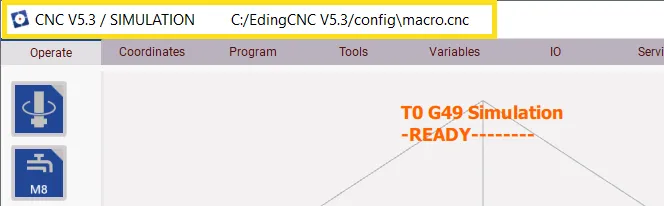
Additionally, in this case, it indicates that it is in simulation mode. This means there is no connection to the controller. In simulation mode, the software can be used entirely as if it were connected to a controller. The software will still yield the same result as if a controller were connected, with respect to path control. This also offers you the opportunity to experiment with settings and observe the path that the machine would travel without actually needing to run it on a CNC machine. Also, it's an excellent way to develop your macros.
However, there are two crucial differences between running in simulation or not:
- It can not simulate input signals, so macros that read inputs will not work correctly in simulation mode.
- In simulation mode, more or different I/Os can be shown that are not available at the controller that you are using.
TIP: It can be helpful to automatically skip macros that will not correctly work in a simulation mode. If you would like more information, please look at the macro programming information.
When the software is connected to one of our controllers, it will show the name of the controller and its firmware version.
To the right of the version information and controller version, the filename of the currently loaded CNC program file is loaded.