4. Connecting home sensors
This information is intended for the {{controll}} and may not be accurate when used with another controller. Please refer to the documentation for your specific controller.
Home sensors provide the machine with a reference for its position. After shutdowns, step loss, and manual movements, the machine will be able to find its original position.
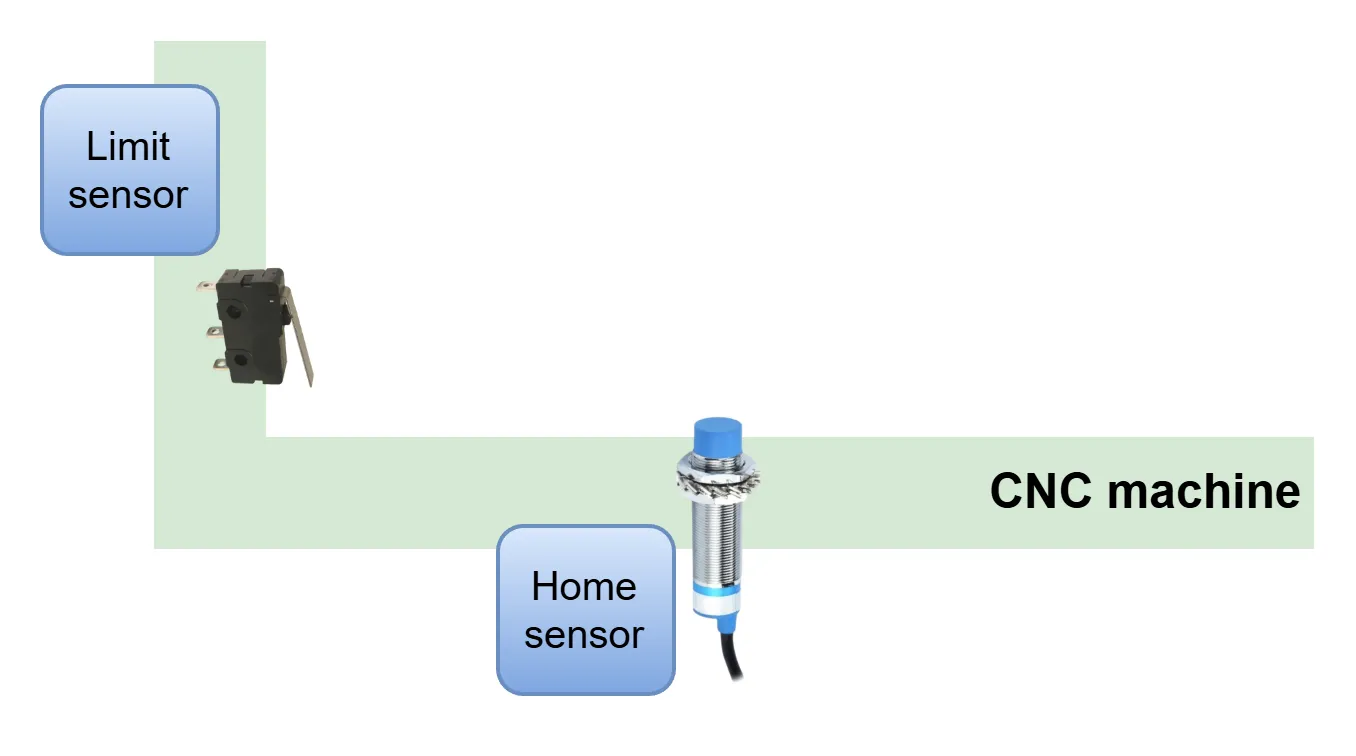
Home sensors and limit sensors are not the same. The difference may seem semantic, but in reality, this means that during homing, a machine must be able to move slightly beyond the switch's trigger point. This is to ensure the machine decelerates after the switch is triggered. This distance is determined by the homing speed and the machine's acceleration (deceleration) settings. Additionally, the home switch position may not be at the axis's limit. A limit sensor is essentially the end of an axis. So there is no room left. The image below illustrates the difference. Please note that the sensor position is relevant in this context, not the sensor type.
The home sensor types supported by the CNC720 are NPN and PNP, both in normally open (NO) and normally closed (NC) configurations. The detection method is irrelevant to the controller and can be selected based on its specifics, such as physical, inductive, or capacitive switches. The CNC720 is designed to sink around 10mA into the sensor when it is active/closed. The threshold voltage for a low or closed signal is typically <1.4V for revision 13 and up and <0.7V for revision 12 and lower. All home sensors must have the same polarity, so all NO or NC.
Hardware configuration
NPN or PNP sensor?
Before connecting the sensor, make sure the controller is powered down. Next, verify that the jumpers for selecting the sensor type are set correctly. The relevant jumpers are shown in the list below:
Jumper | Function |
|---|---|
JP6 | HOME1 mode NPN or PNP |
JP7 | HOME2 mode NPN or PNP |
JP8 | HOME3 mode NPN or PNP |
JP9 | HOME4 mode NPN or PNP |
Below is shown where these jumpers are on the controller:
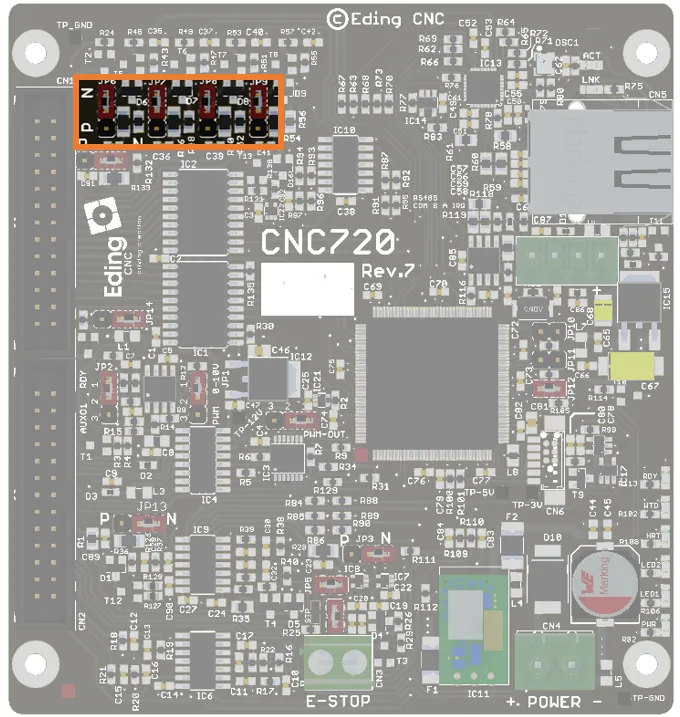
If the jumper is in position 'N', the sensor is NPN; in position 'P', the sensor PNP.
Please note that sensors cannot be mixed; they must be either NPN or PNP.
Home inputs
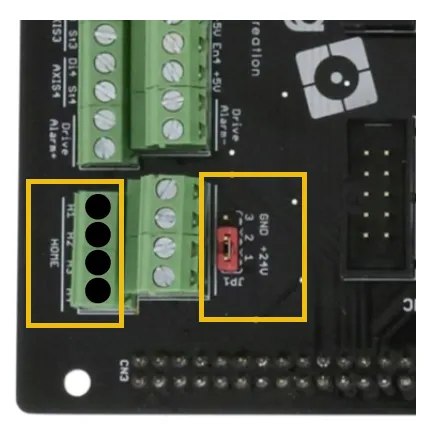
The CNC720 has 4 inputs for homing signals, one for each axis. On the breakout board, behind the home inputs, are a row of connections that can be configured to either +24V or GND. Depending on how you wire the sensors, you can select this using jumper JP1.
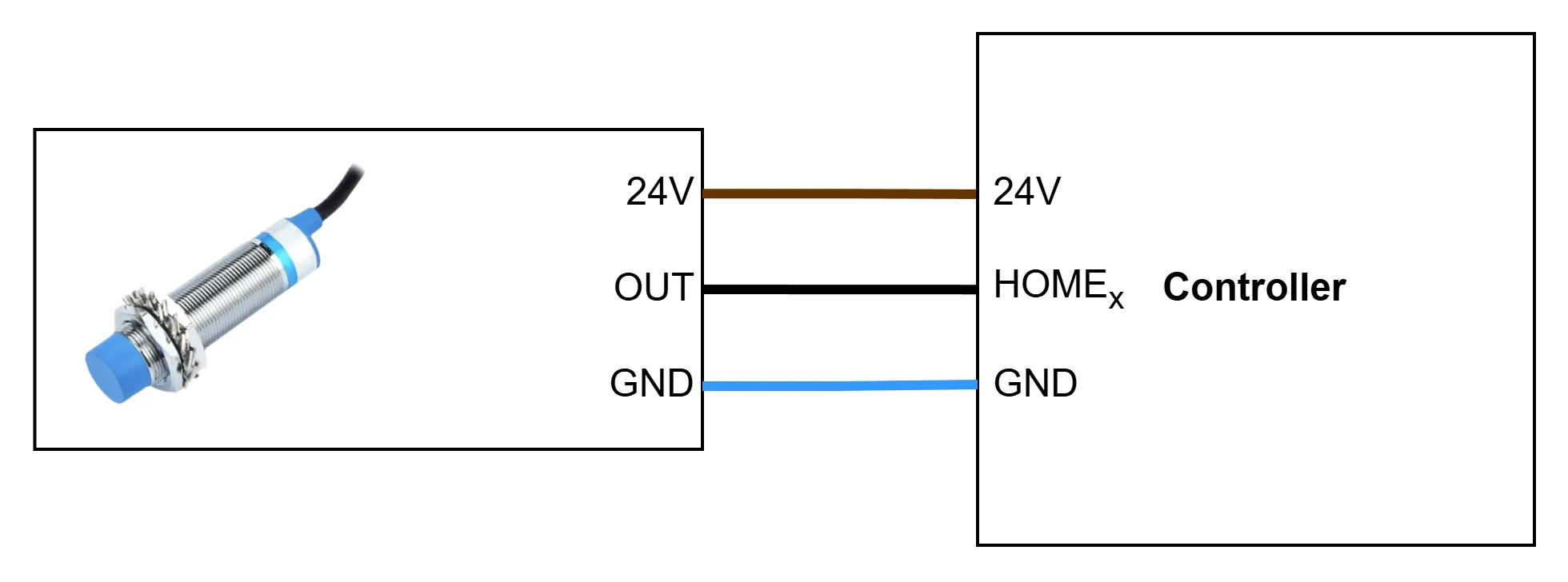
Wiring an inductive sensor
The advantage of using an inductive sensor is that detection is contactless. Avoiding the wear-and-tear of the sensor. However, they are activated by detecting a metal surface near the sensor. Please check the manual for the detection distances.
In general, most sensors will have the following color codes:
- Blue is the ground wire
- Black is the signal wire
- Brown is the +24V wire
Always check the manual of the sensors to validate the color code
Wiring a microswitch
When using a simple switch, eg. microswitch. You only need two wires.
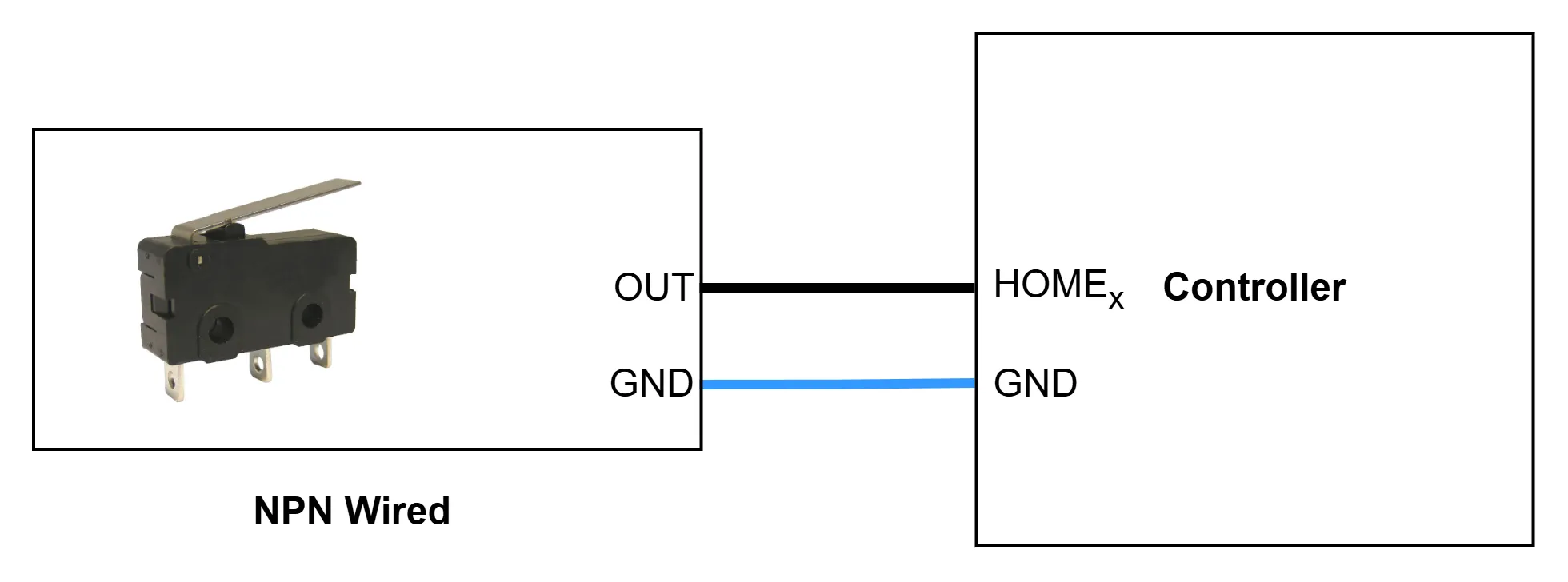
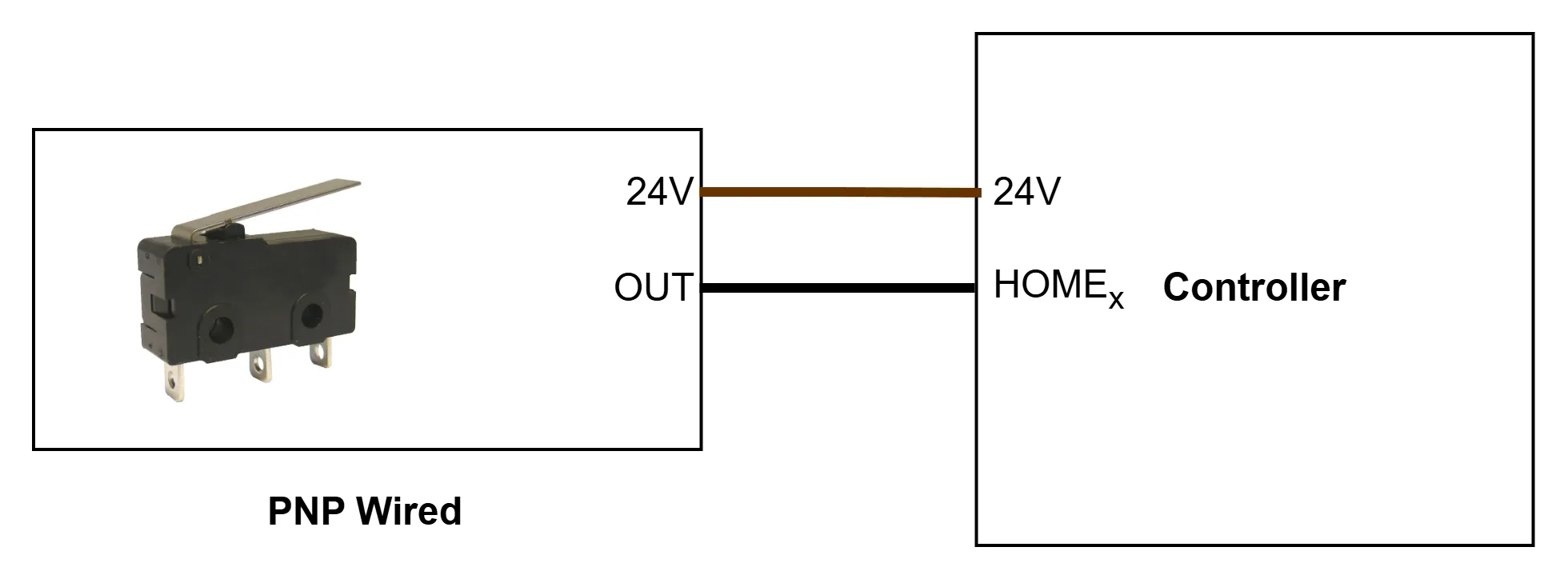
Testing the sensor
Ensure that none of the sensors are currently triggered.
Open the IO tab and find the home inputs. Their state is indicated by the circle's color next to the input.
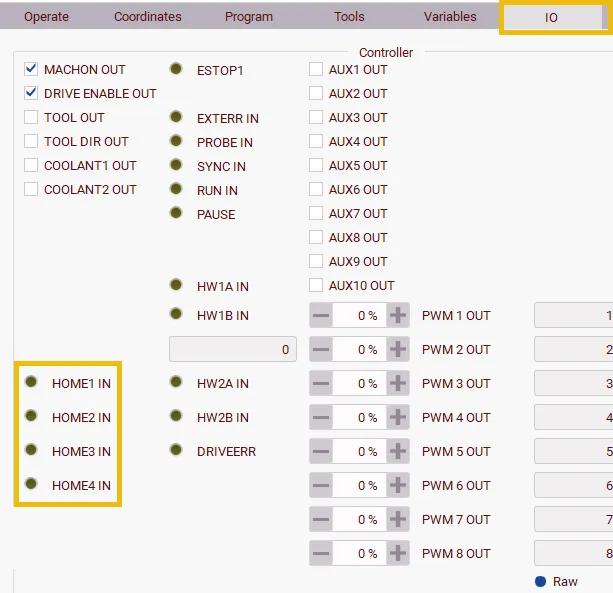
Verify that the color of the switches in the non-triggered state is the same and matches the software settings.
Please note, these indicators show the logical state of the input, so either high or low. It does not show the functional state. Detection is purely based on change of level compared to the level when the sensor is not active.
Manually activate the home sensor for each axis and verify whether the input state changes. If the switch does not trigger, verify the wiring steps. If the wiring is correct, check that the sensor actually triggered; some sensors have a built-in LED indicator to also shows the activation.


Home sensor active range
When the controller needs to perform a homing sequence, it must know the direction to travel. This is done by detecting whether the homing sensor is active at the start of the homing sequence; based on this, the controller knows which direction to travel. The machine must be designed to detect this correctly. Failing to do this can result in damage.
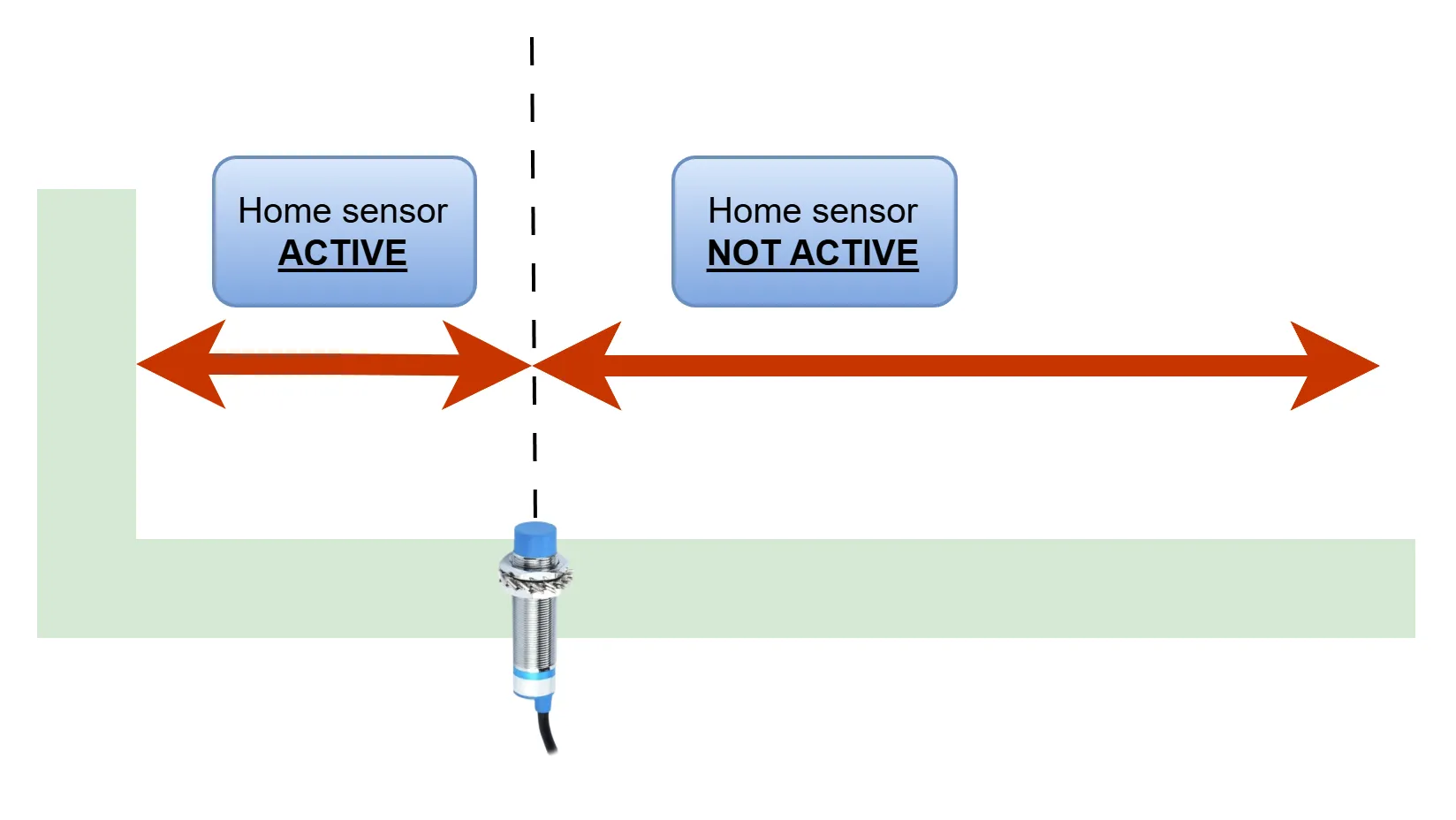
The homing algorithm is designed to prevent the sensor from activating at the end of the homing process. As a result, the machine coordinate will not be exactly zero because it accounts for the offset from the actual homing position and the sensor's non-activated positions. The so-called 'pull-off' position. If you prefer to have the machine position to be exactly 0, you can add at the end of the homing macro this:
This is, of course, an example for the X axis, but it can also be applied to other axes by using the correct axis designation.
Software configuration
Homing an axis works the same for most axis types except for master-slave setups. 'Master-slave' is sometimes also called 'Gantry Squaring' or 'Tandem-axis'. Using master-slave axes with auto-gantry squaring requires additional setup steps as outlined in Tandem axes which cannot be skipped.
With all sensors wired, start the software with the machine connected. Open the setup tab, navigate to 'Machine General', and scroll to the 'Homing' section.
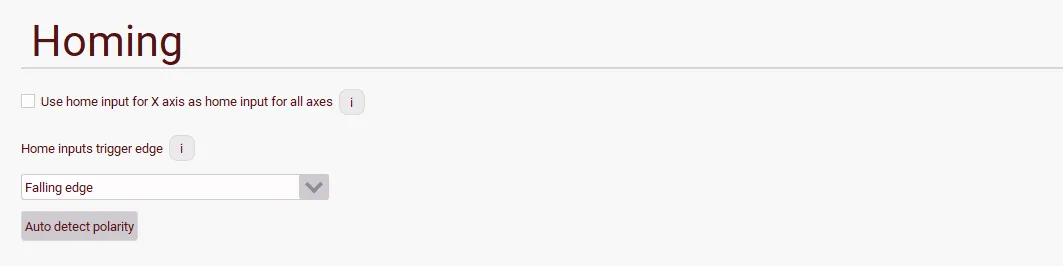
If the switch type is known, the setting must be set to "Falling edge" for NO sensors and "Rising edge" for NC sensors.
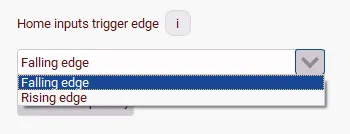
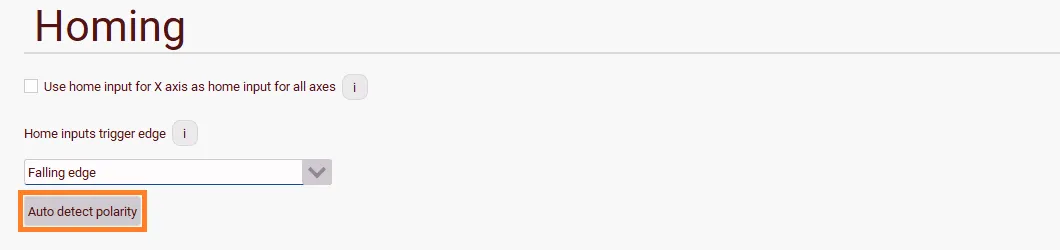
If the switch type is unknown, the switch polarity can be determined automatically. Jog the machine to a position where none of the switches are triggered. Press "Auto detect polarity" and "Ok" to use the current values of the home inputs as inactive.
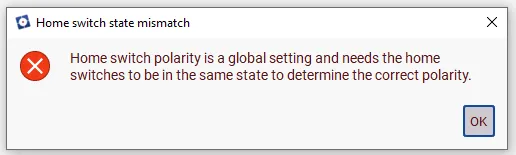
If the state of all home inputs is not equal, an error will be displayed. This can happen because the sensor types are not identical or mixed, or because some inputs are triggered while others are not. Perhaps some switches are accidentally activated.
If all home inputs are wired to the first home input, the "Use home input for X axis as home input for all axes" option must be checked.
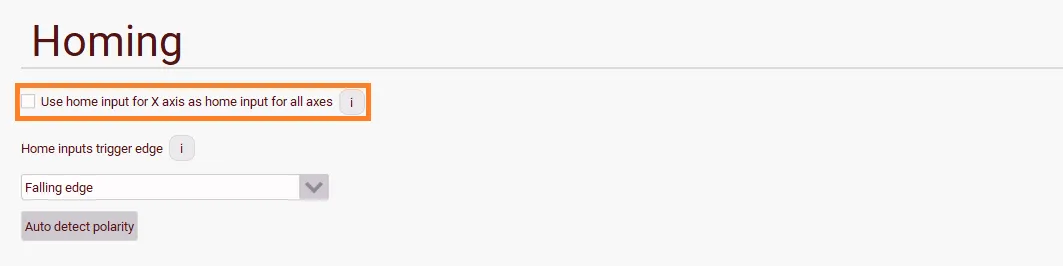
This option is not supported with tandem axes because, with both motors running simultaneously, it is impossible to know which sensor was triggered.
Next, scroll to the Motors section.
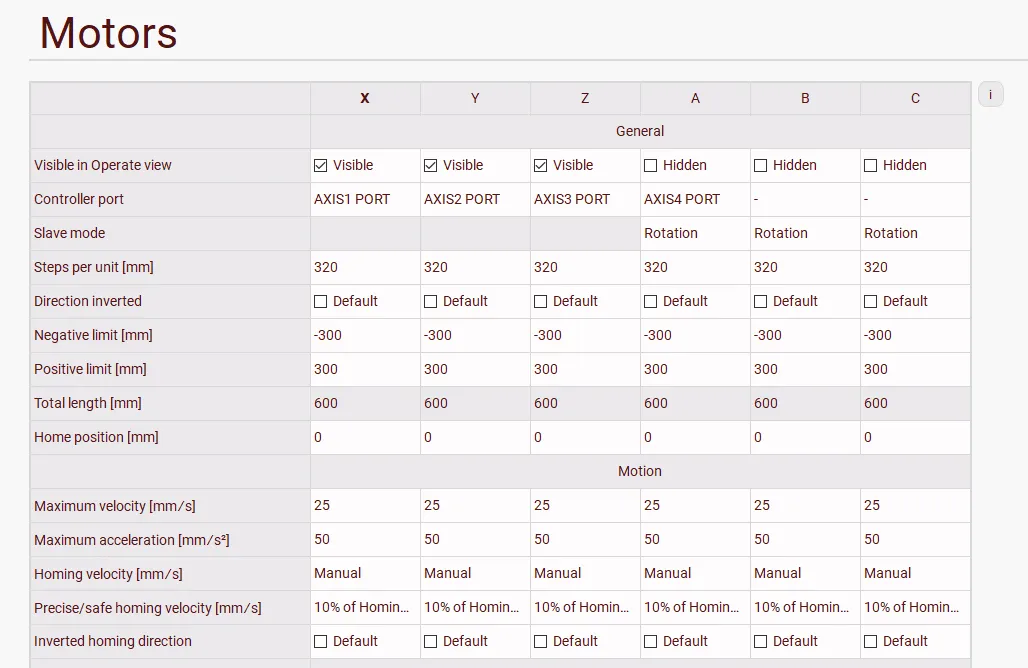
All homing options here can be configured on a per-axis basis.
These configuration steps assume that the Maximum velocity and Maximum acceleration have already correctly been set. Both these settings may influence the homing procedure and changing them later may induce changes to the homing sequence.
By default, the Homing velocity is set to 0, in this case, Manual appears in the setup for that axis. Executing a home command for this axis results in the current position being set as 0.
Entering a non-zero positive value ensures a proper home movement will be executed.
A high homing velocity results in a faster homing sequence but also increases the distance the axis moves past the sensor trigger point. When the sensor triggers during homing, the axis will decelerate according to the value entered in Maximum acceleration. The distance covered results from the acceleration, Homing velocity, and fifoTime. Typical values are around 10mm/s.
The precise/safe homing velocity is the velocity at which the machine is moved out of the sensor's triggered area. Typical values are roughly 10% of the homing velocity; the sensor untriggers at that point, which is used as the home position.
Any inaccuracies caused by the first faster movement are therefore not translated into an inaccurate home position.
The homing sequence needs to know whether to home in a positive or negative direction. If the home position is at the machine's negative limit, invert the direction. If it is at the positive limit, it should not be inverted.
This is set by checking Inverted homing direction.
Lastly, the 'home position' need not be at the sensor trigger point. An offset can be applied to decouple the sensor position from the home position. The value entered here represents the trigger point's position relative to the home position.
Tandem axes / master slave / gantry squaring
In many cases, it is helpful to use two separate motors on a gantry, perhaps due to weight and size, or to avoid the gantry being no longer square during the operation of the machine.
There are three modes to do this:
- Connecting two motor drivers to one output
Advantages: cheap and simple
Disadvantage: once the gantry is misaligned for any reason, this needs to be fixed manually.
- Using two axes output in master-slave or tandem setup (slave follows master)
Advantages: complete control of master and slave axis position.
Disadvantage: needs an extra axis output
- Master-slave setup, but with so-called 'gantry squaring'
Advantages: The gantry can automatically square itself after homing, improving the machine's results.
Disadvantage: it needs an additional homing sensor, and setup is a little more complicated.
The rest of the document will only discuss the second and third options as the first option required no additional setup compared to a regular axis.
Step 1. Axes setup
The first step in setting up this is to set up the axes. Depending on the controller, any of the up to 3 extra axes can be configured as a slave axis, as shown in the image below. Please note that typically, only one of these dropdown boxes will be displayed.
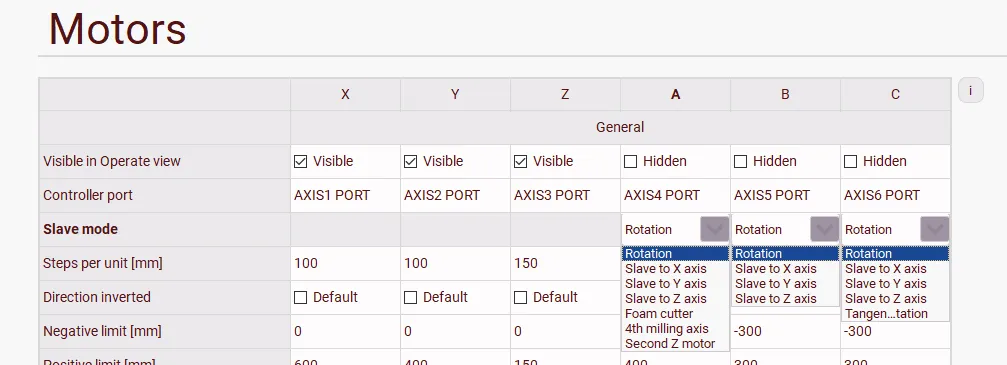
The options relevant to setting this up are selecting one of three options:
- Slave to X axis
- Slave to Y axis
- Slave to Z axis
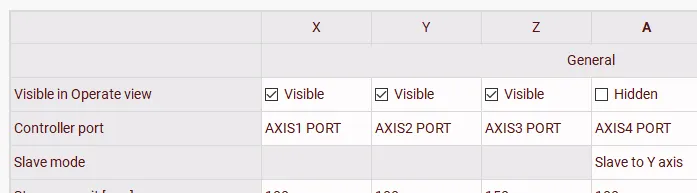
For this example, we will use the A axis as a slave to the Y axes. In the setup, this will look like this:
Step 2. Macro modifications
Changes to the macro must be made to home axes used in a tandem configuration. A tandem configuration contains two axes, one master and one slave axis. The master axis is the axis that can be actively controlled, and the slave follows the position programmed to the master.
In this example, the Y axis forms a tandem pair with the A axis. The Y is the master, and the A axis follows as the slave. In the macro, both of the homing macros need to be changed.
On the Operate tab of the software, click "Macro", and subsequently "Edit file".
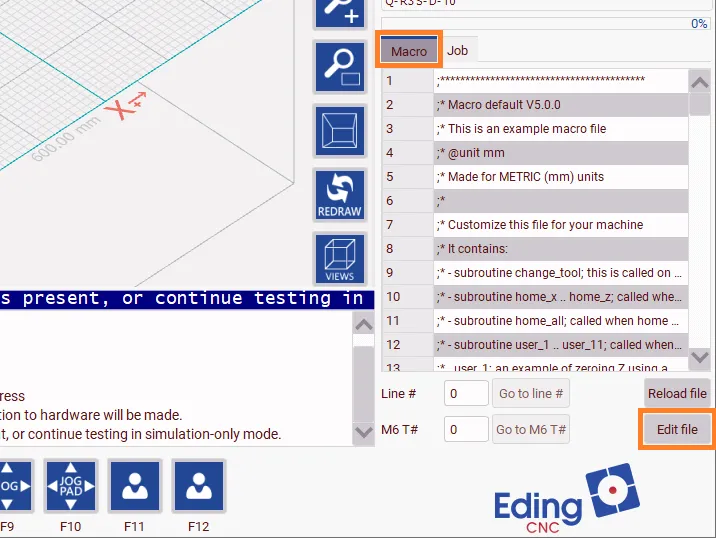
There are two options:
- Tandem axes with one homing sensor
- Use gantry squaring with two homing sensors
Option 1 - Only tandem axes with one homing sensor
Since there is only one homing sensor, there must be no separate homing of the slave axis. We can modify this in the macro called home_a. In this case, we can either remove the line Home a or comment this out:
Original
Modified
Option 2 - Use gantry squaring with two homing sensors
When actual gantry squaring is to be performed, two macros need to be modified, 'home_y' and 'home_a'
First, modify 'home_y':
Original
Modified
Next, as before, modify 'home_a'
Original
Modified
This starts tandem homing when the Y axis is homed and does not re-home the A axis separately.
Please note, the macro home_all is used to indicate the homing sequence:
When pressing 'Home all', each axis is homed sequentially, the default sequence is Z, Y, X, A, B, C. If the machine needs a different order, this can be changed in the macro as well by changing the order of the lines in home_all
Save the file and close the editor. Press "Reload file" to load the changes into the software.
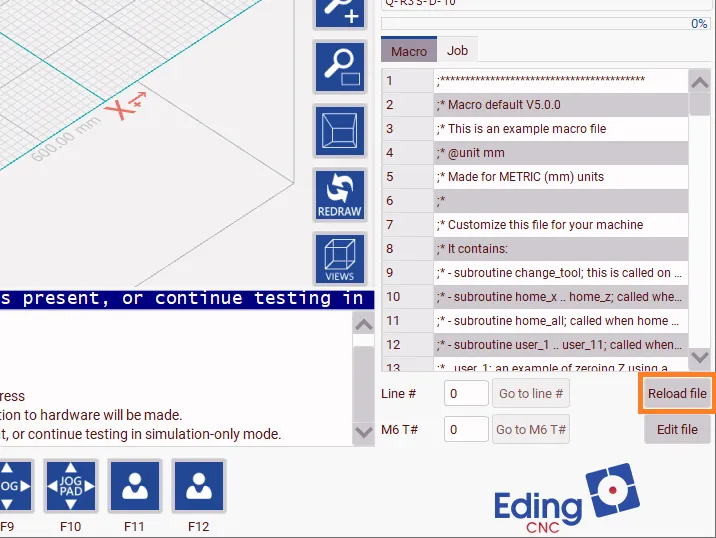
Gantry squaring
When using two homing sensors for homing, it's likely that there is a small difference in the position in reference to the gantry. As part of gantry squaring this can be addressed in the setup of each axes.
In the Setup tab navigate to 'Machine general' and scroll to the Motors section. When using Gantry Squaring, the home position settings for both the master and slave are used for both homing sensor compensation and squaring.
Maximum distance slave and master axis
Setting the maximum distance between the master and slave after homing to a low enough value is crucial. Both axes move simultaneously during every step of the homing procedure except the last movement. This last movement moves the slave axis to the position of the master. This is the actual squaring movement.

If the difference between these axes is too high, the machine may be too rigid to perform this movement. Most machines may only be able to independently move between 1 mm and 20 mm before binding or damage occurs. The more rigid the machine, the smaller this distance should be. If a large difference is found after homing, this likely indicates that the homing procedure failed.
Testing
Things to observe during testing
The first thing to watch out for is the direction the machine homes. If this is incorrect, stop the machine using either the E-stop or by pressing Reset. If the homing direction is incorrect, see if the messages show "Home sensor active, starting with second move". This means that the Homing inputs trigger edge setting was set wrong. If this message does not occur, the homing direction should be inverted in the setup, as described in the Configuration chapter.
Once the machine moves in the correct direction when homing, let the machine go home completely. Keep near the E-stop switch. If the machine moves past the homing sensor without stopping, abort using the E-stop switch or the reset button.
If the machine homes correctly, the axis will have moved to the direction of the home sensor, upon triggering it will decelerate and move back out of the sensor. After the sensor un-triggers, the machine will again delecerate and come to a standstill.
Step 1 - Testing homing sensors
Ensure that none of the sensors are currently triggered.
Open the IO tab and find the home inputs. Their state is indicated by the circle's color next to the input. Check that the color of the switches in the non-triggered state is the same and matches the setting for Home inputs trigger edge. If the setting was set to Falling edge, all indicators must be on, if Rising edge was set, the indicators must be off.
Please note, this indicators show the logical state of the input, so either high or low. It does not show the functional state. Detection is purely based on change of level compared to the level when the sensor is not active.
Manually activate the home sensor for each axis and check if the state of the input changes. If the switch does not trigger, check the Wiring steps. If the wiring is correct, check that the sensor actually triggered, some sensors have a built-in LED indicator to show the activation.
Step 2 - Manually testing gantry squaring
When gantry squaring is used it's possible to manually test each of the 4 sequences of gantry squaring. Please note, this is ONLY for testing each step NOT for normal homing. These steps are normally automatically executed when TandemHome function is called in home_ macro.
Use them in MDI for testing and understanding.
- PrepareTandemHome y, Both slave and master are moved towards the home sensor. The axes stop when both axes are on the sensor. When one axis reaches the home sensor first, this one is stopped, and the other moves further. This movement is done when both axes have reached the sensor.
- Home Y, home the Y, the slave will just follow. The Y home sensor is used. Because the Y is already on the sensor, the move will be toward the machining area away from the sensor. The position is latched at the moment the sensor de-activates. Then the movement stops and then the correct position is calculated end set for the Y.
- Home A, exactly the same, but now the A Home sensor is used and the A position is set. When done, A is no longer a slave because the position is different from Y. This is indicated by the message: "Slave decoupled from master". The following command will restore the master slave-coupling.
- At this point, both master and slave have a correct known position but are probably different. It can be equalized by moving the slave axis to the position of the A axis. This is done using the command MoveSlaveToMaster A. The slave will move to the same position as the master. The gantry is squared and the homing procedure is done. (If the gantry is not square, adjust the home positions in the setup).
Step 3 - Home each axis
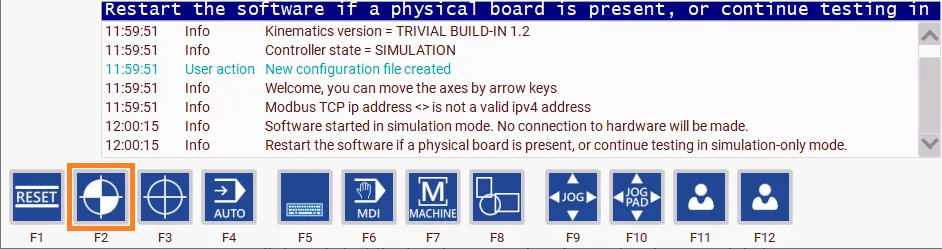
Keep near an E-stop switch and start the homing procedure for each axis separately by going to the home menu and pressing the home button for the accompanying axis. Remember that the order of homing operations is usually important to avoid collisions.
The image below shows the homing menu at the bottom of the operate tab:
The Homing menu has separate buttons for manually homing each axis:
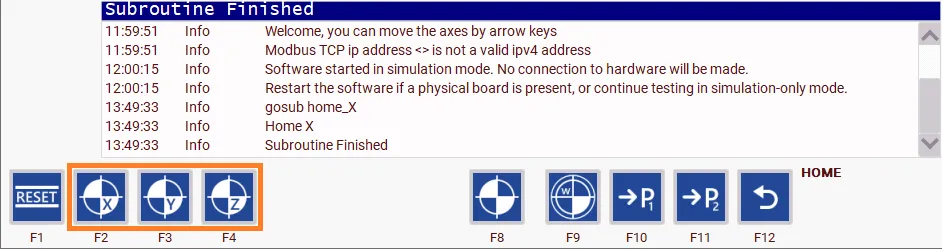
Repeat this manual homing each axis. After all axes are tested separately, press Home All to verify the order of the homing operations.
Optionally correcting the homing position after homing
After the machine has been homed, the actual machine coordinate position will be slightly away from the home position point, this difference is the result of the machine needing to decelerate after the home sensor triggers. This does not mean that the home position is inaccurate.
A side effect of this behavior is that the sensor is always un-triggered after the home operation for that axis is completed. This is especially important in setups that use all homing switches to be connected to one input.
If, for any reason, it is preferred that the machine is positioned at position 0 of that axis, it is possible to add a command to the homing functions. There are two ways of doing this:
Move to position 0 of the axis after homing it
For example, for the X axis, the standard macro function can be modified so that after homing the axes move back to their actual 0 position:
Original
Modified
Keep in mind that for other axes the 'X0' needs to be changed to its respective axis. Depending on the machine, you can optionally also add the feed rate by replacing the G0 with G1 and adding an F-word:
Move to position 0 for all axes after homing
The second option is to execute the move when all separate axes have been homed. This is also preferred when all homing inputs are connected to one input.
In that case, an extra line is added for all axes. Below is an example of the home_all function:
Original
Modified