3. Connecting axis motor drivers
The axis motors drive the machine into position. Each axis can have up to two motors by combining the signals from one output to both drives, resulting in a total of 8 motors across all axes. Motors can perform linear and rotary motion, as well as general-purpose functions, such as those in an ATC.
As long as the step/direction interface is available, it does not matter whether stepper or servo drives are used.
Wiring
The controller with the breakout board has several connectors to connect the motor drivers. It can be wired up using screw terminals or IDC connectors. All these options provide a step, direction, and enable signals.
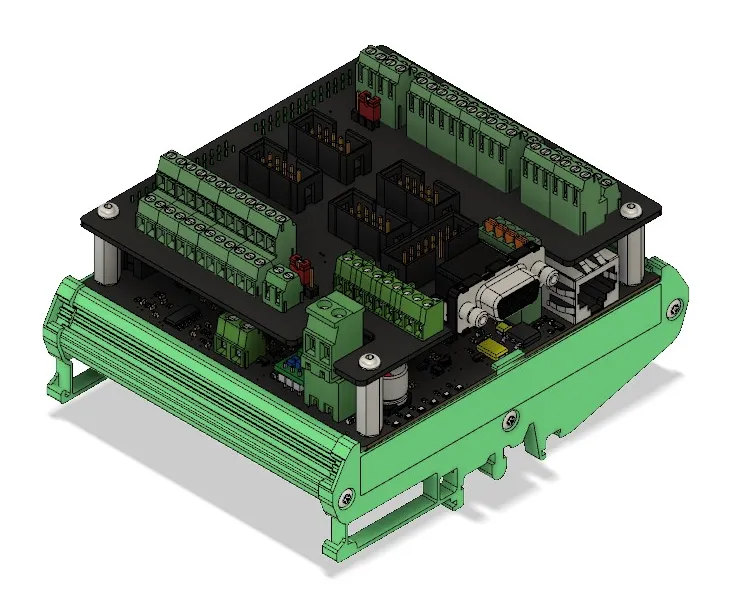
Always consult the motor driver manual to determine whether any additional wiring steps are required. This manual is meant to be generic and cannot contain every combination.
Screw terminals
Connecting a motor driver to the CNC720 screw terminals is generally possible for all drivers. While other connection methods may be easier, connecting them via screw terminals will work with all drivers. The CNC720 supports both sinking (NPN) and sourcing (PNP) single-ended control signals. Consult the driver's manual to determine which of these two methods is usable for the motor driver.
IDC connector / Box header
These connectors can be used for setups that use flatcables to connect to a motor drive.
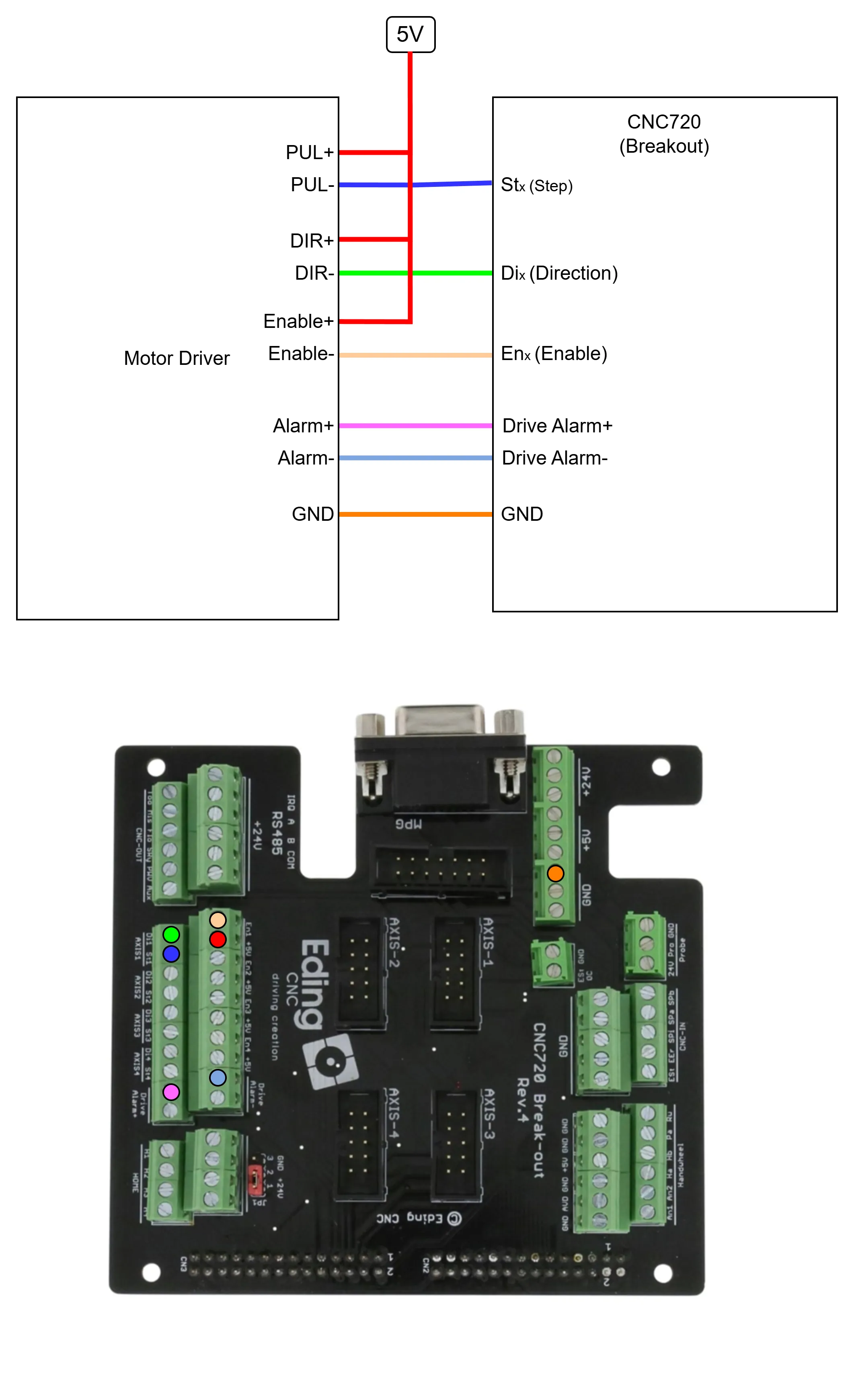
Sourcing/PNP/Common anode wiring
In this wiring option, all driver positive terminals are connected to the +5V terminal. Each negative terminal on the driver is wired to its respective terminal on theCNC720.
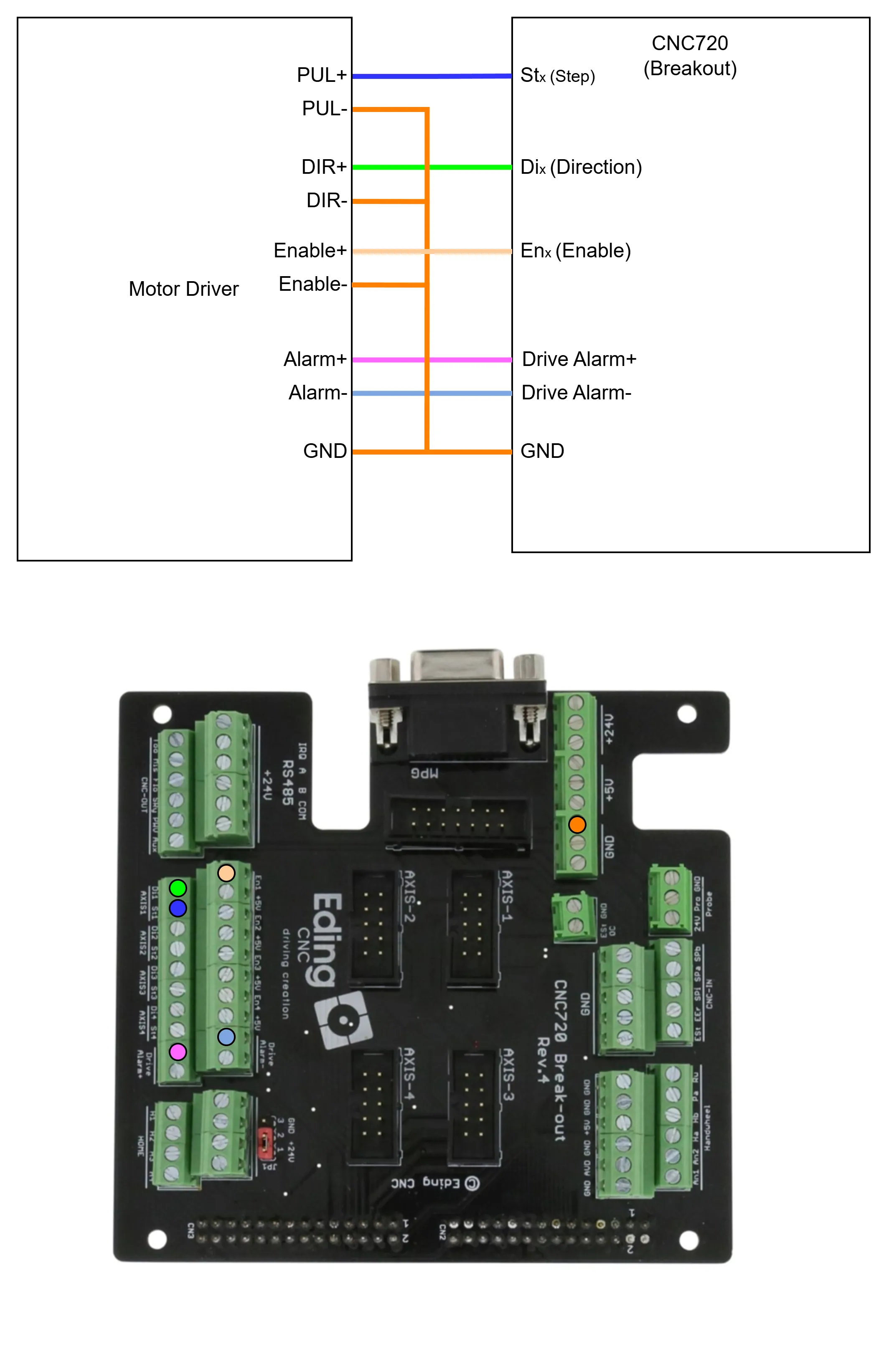
Sourcing/PNP/Common cathode wiring
In this wiring option, all driver negative terminals are connected to the ground terminal. Each positive terminal on the driver is wired to its respective terminal on the CNC720.
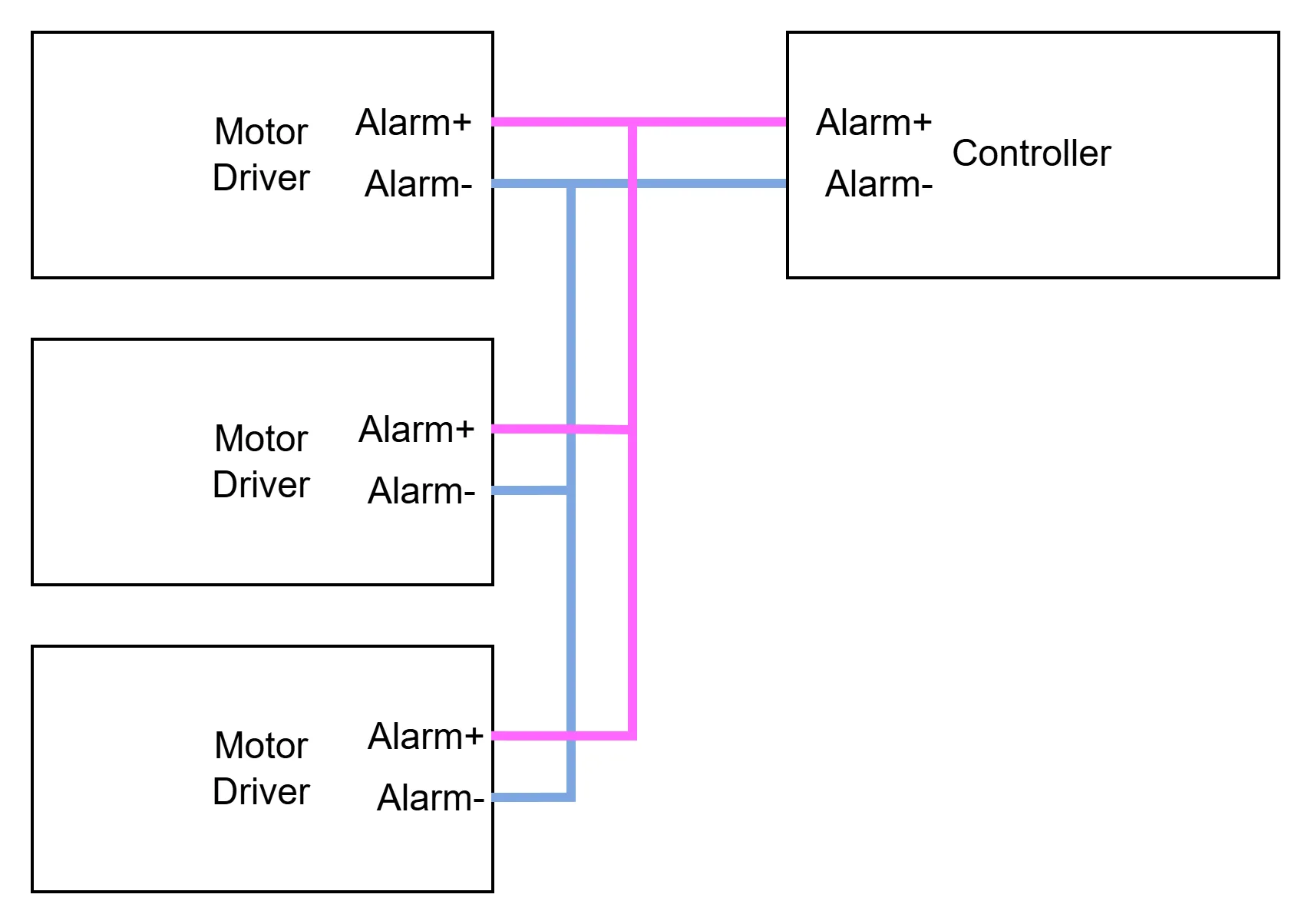
Combining alarms
Many drivers have open-collector alarm outputs; these outputs can simply be combined. resulting in simpler wiring.
Software Setup
Start the software with the machine connected. Navigate to 'Setup' -> 'Machine general' -> 'Motors'.
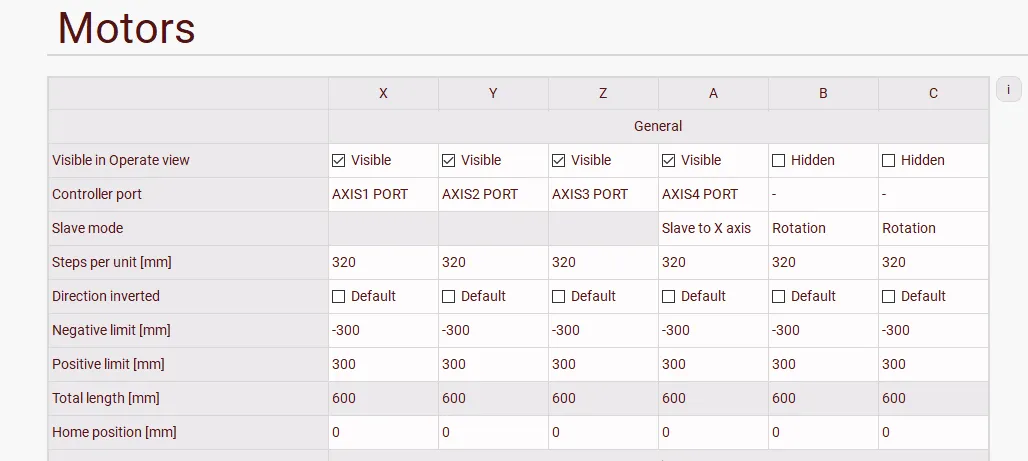
Details on any setting can be found on the Joint settings page. This guide covers only the most commonly used applications.
Visible in Operate view
Any axis that needs to be visible on the DRO in the Operate view should be marked as visible in the "Visible in Operate view" setting.
Controller port
In general, port 1 on the controller should map to the X-axis, port 2 to the Y-axis, port 3 to the Z-axis, and so on. This can be changed if this mapping cannot be followed for some reason. If a port is currently in use, it will not appear in the list; remove the port from its current use, then select the new port.
Slave mode
The slave mode setting sets the purpose of the additional axis. It can be set as a slave to another axis (tandem axis), as a rotational axis, as a tangential knife, or used in a special kinematic type. All options except the rotational axis require additional setup. More information on using slave mode is available in the 'Connecting home sensors' step.
Steps per unit
The "steps per unit" setting is the number of steps (including microsteps) required to move the machine 1 unit (mm or inches).
Two parameters are required to calculate this value.
- The number of steps per revolution of the motor. For stepper motors, this equals the number of full steps per revolution (typically 200 or 400) multiplied by the microstepping setting (typically 1, 2, 4, 8, 16, etc.). For servo motors, this is usually a parameter in the drive.
- The distance traveled by rotating the motor one full revolution. In simple situations where the motor is directly coupled to a lead/ball screw, this value is simply the thread pitch. When using pulleys, this value varies with the gear ratio. When using a rack-and-pinion, these values are usually listed.
Using these two values, the steps per unit (referred to as revolutions) can be calculated as follows:
resolution=\frac{StepsPerRevolution}{DistancePerRevolution}Direction inverted
'Direction inverted' changes the direction of the axis. This setting is usually best set by trial and error. If the machine moves in the wrong direction, just change this setting. Keep in mind that slave axes cannot be inverted independently of the master.
Negative/Positive limit
The positive and negative limits are the maximum and minimum travel distances from the home position. If these are known from the design, they can be set directly; if they must be determined by moving the machine to its extremes, they should be set last.
Rotary Axis Configuration
When a rotary axis is configured, it's vital to understand that the steps are no longer measured in mm or inches but in 1-degree increments.
So also the limits are now interpreted in degrees. If a rotary axis does not need a limit, the limits should be set to 0.
Testing
Ensure first that the E-Stop switch has been wired correctly according to the instructions in 'Connecting an E-stop switch'.
Failure to do so may result in damage to the machine or injury to the operator.
Check local regulations for specific instructions.
Make sure the software is started and a connection to the machine has been established. If the software was previously started, restart to ensure the machine is in a freshly initialized state. Without further action, check the following:
- Check that the drivers are not enabled if the drive enable signal was wired. If the drives are enabled but ARE wired to the enable signal, it's possible you need to invert the signal. This can be done through the Input/Output screen in the 'Setup' tab.
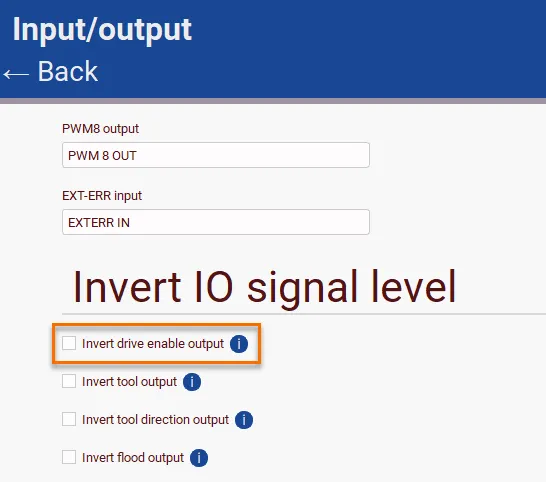
- Make sure the E-Stop is not pressed and that no error related to it is displayed.
Now press the reset button (F1) and check the following:
- Check that the drivers are enabled.
- Check that no Drive-Alarm or Drive-Errors are displayed. If there are errors, first check if the drivers are actually in an error state; these signals might also need to be inverted. This can usually be seen by an indicator on the driver.
Jog the machine by opening the jog pad (F10), pressing the step size (0.001/0.01/0.1/1), and pressing the button for the respective axis. Ensure the step size is small when unsure about the step/unit setting.
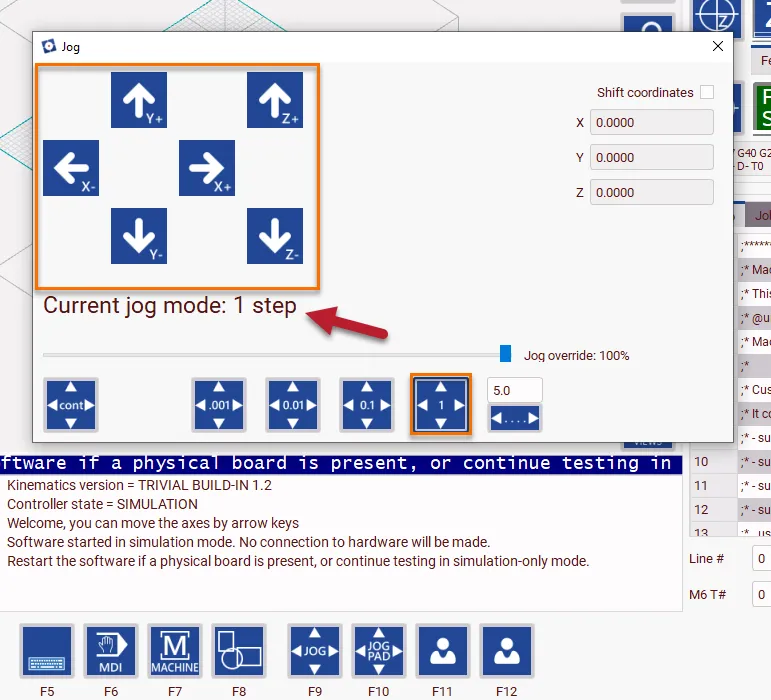
Check for the following:
- The axis moves in the correct direction; compare this to either the coordinates or the tool in the 3D view.
- Check that the correct axis moves.
- Check that the distance moved is correct. This can be an approximate checked, further calibration can be done by the setups outlined in Calibration.
Axis limits
In most cases, the theoretical axis limits are not exact and may require additional setup.
Before testing the axis limits or working on any calibration the home sensors should be connected and tested.
With the machine homed, jog each axis to both its positive and negative limits. Use smaller steps or lower velocities when approaching the limits so the machine can stop faster; this reduces damage if the limit settings are incorrect.
If the machine reaches its mechanical limit before the software limit, ensure the machine moves slightly back and use the DRO reading from that position. Make sure to use the machine position and not the work position. It is always recommended to be slightly conservative with the software limits, so set the range slightly smaller than the mechanical limit.
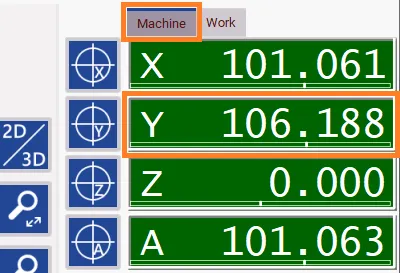
Calibration/Compensation
Pitch compensation is a feature that corrects for minute mechanical inaccuracies in the ball screw, rack and pinion, or linear scales along an axis's travel. It improves positioning accuracy by adjusting movement pulses based on measured pitch errors, correcting for uneven screw pitch or assembly tolerances.
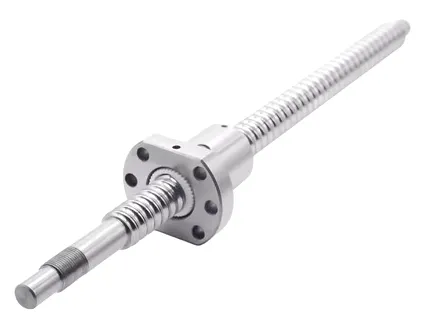
The software provides several calibration options to compensate for inaccuracies.
- Equal compensation - Across the entire range
- Linear pitch compensation - Mapping inaccuracies across the axis
- Cross compensation - Compensation inaccuracies between different axes
- Backlash compensation - Compensation of lost motion (mechanical slack) when reversing direction.
Each of these compensation methods addresses a specific inaccuracy.
Equal compensation
Equal compensation is the easiest form of compensation. And compensates completly along each axis.
Step 1. Move the machine to a starting position (typically near the axis's starting range) and mark the position on the machine, either with a V-bit or a bit with a known diameter or a pen. Note the exact position used here, as shown in the DRO.
Step 2. Move to a position near the other extreme of the axis, and make the same mark as at the starting point. Also, note this position from the DRO. The distance expected in the formula is the end position minus the
start position. Use a calculator to calculate this distance if needed.
The distance expected is the distance between the center of the mark at the end position and the center of the mark at the start position. If a bit with a larger, known diameter was used, measure from the shortest distance between the points and add the tool diameter to this distance.
The formulas below also apply to rotary axes; in that case, replace distance with angle in degrees.
Any of these calibration steps may influence the machine's limit settings. If these were previously set by moving the machine to its extremes and using those values, that step must be repeated.
resolution_{new}=resolution_{old}*\frac{distance_{expected}}{distance_{actual}}resolution_{new}=320*\frac{100}{99}=323.232The newly calculated resolution can be entered in the axis setup. After saving, repeat the test to verify that the theoretical and actual distances match.
Linear pitch compensation
The accuracy of the screw pitch varies over the length of the screw. The linear pitch compensation is a way to improve the machine's accuracy when the linear displacements are not precisely correct. For example, cheap rolled ball bearing spindles may have an inaccuracy of several 0.1 mm at a meter length. Also, the pitch may vary a bit depending on the position. This compensation feature allows us to correct this.
These steps should be followed only when the machine can be homed. The measurements are relative to the machine position; therefore, the origin should be at the same location every time.
To automatical generate an example file take the following steps.
- Open the 'Setup' tab
- Navigate to 'Machine General',
- Scroll to the 'Motors' table.
- Enable Pitch compensation for the desired axis.
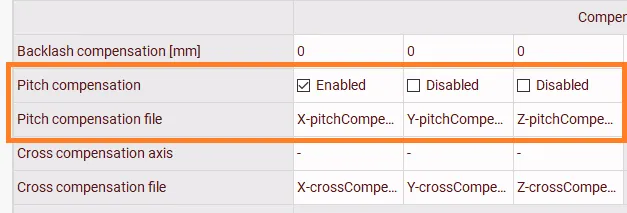
- Save the settings
- Turn pitch compensation off
- Save the settings again
-
This will ensure that the example file is generated.
The 'Pitch compensation file' setting specifies the file in which the compensation values are stored. If this file did not exist, it would have been created by following the previous step. The newly created file will contain an example of this table. The entire axis range can be mapped or only a small section.
Here is an example of the created file:
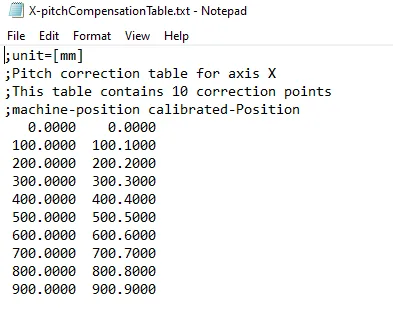
The left value is the position of the machine. The right value is the calibrated position obtained by measuring.
Perform the measurement steps of the previous method, but on multiple positions. Make a list of the programmed positions of each point and the corresponding measured points.
Open the pitch compensation file for the measured axis and replace the values with the measurements. The measurements should be ordered from smallest to largest position (note that -100 is smaller than 0 and should come first). Save the file and close the editor. After this, enable the Pitch compensation for the axis and press save to ensure the new values have been loaded.
When pitch compensation is active, it will be visible in the DRO. It is recommended to repeat this tests to ensure the compensation has been applied correctly.
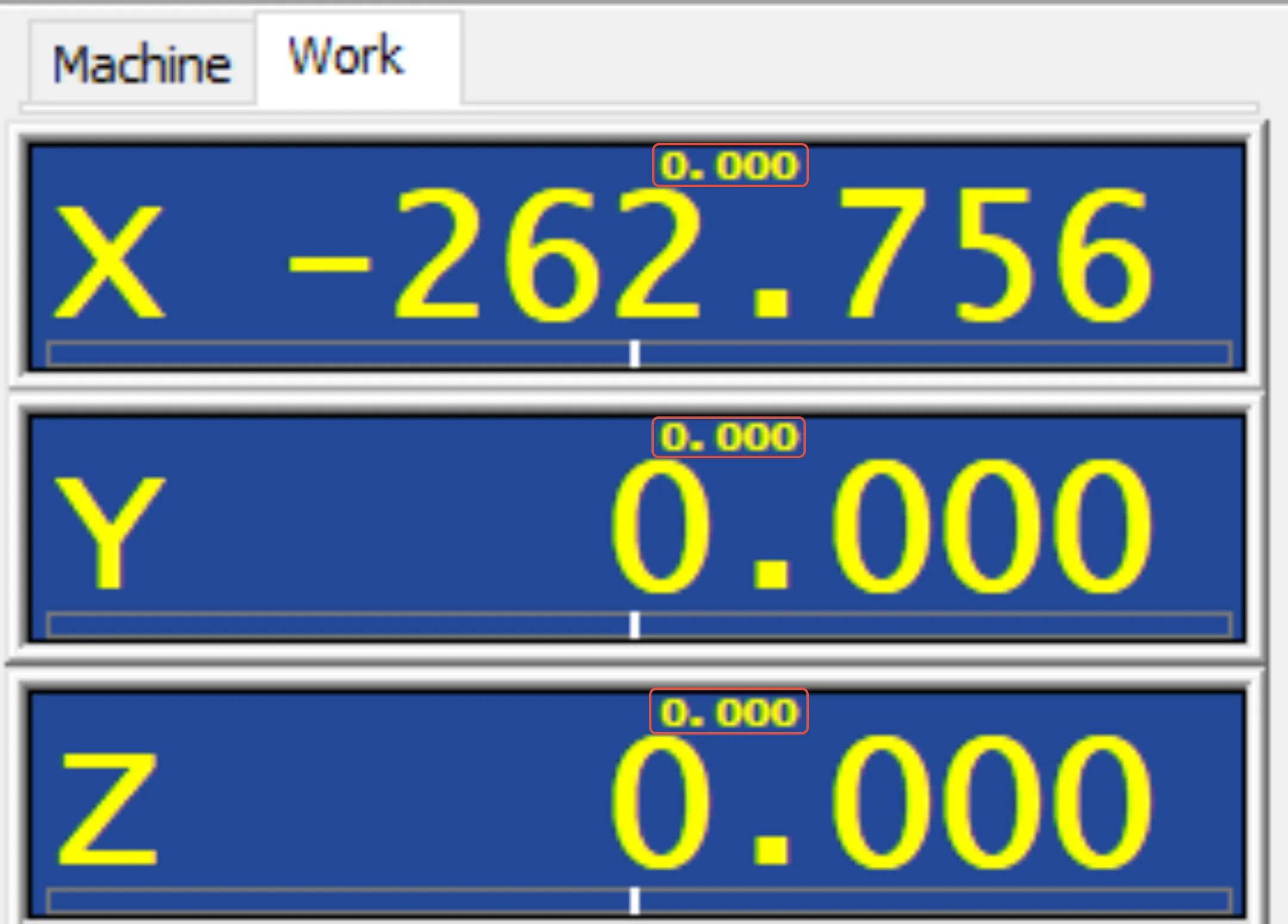
You can make the compensation value visible by checking Show in DRO on the coordinates window.
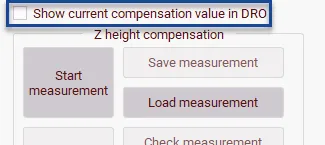
You will see this in the DRO a small number above the position showing the pitch compensation value.
Related Videos
The video below is in German. It shows how to use pitch and cross-compensation.