Firmware upgrade
Product specific
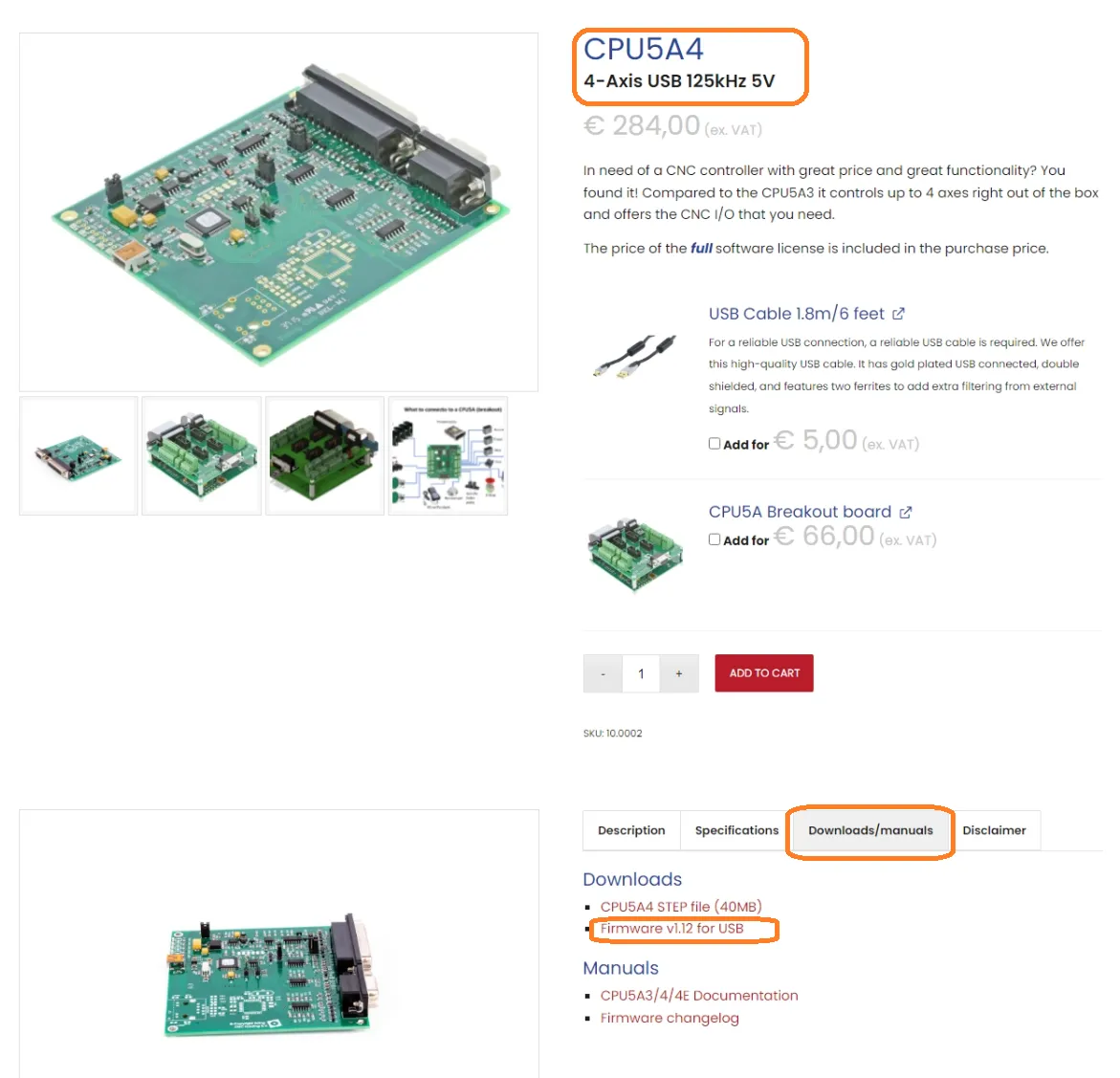
All controllers containing a USB port use the USB to upgrade their firmware. The table below provides an overview of the connection and action required to start the device in bootloader mode.
Firmware upgrade
Start the firmware tool
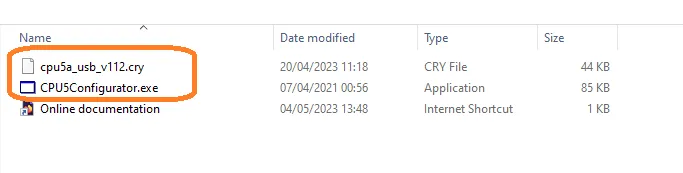
Navigate to your software installation directory (typically c:\EdingCNC5.xx) and open the bin directory.
Start the FirmwareToolUI.exe program. If this executable is not available, follow the instructions for Software version 4 and below.
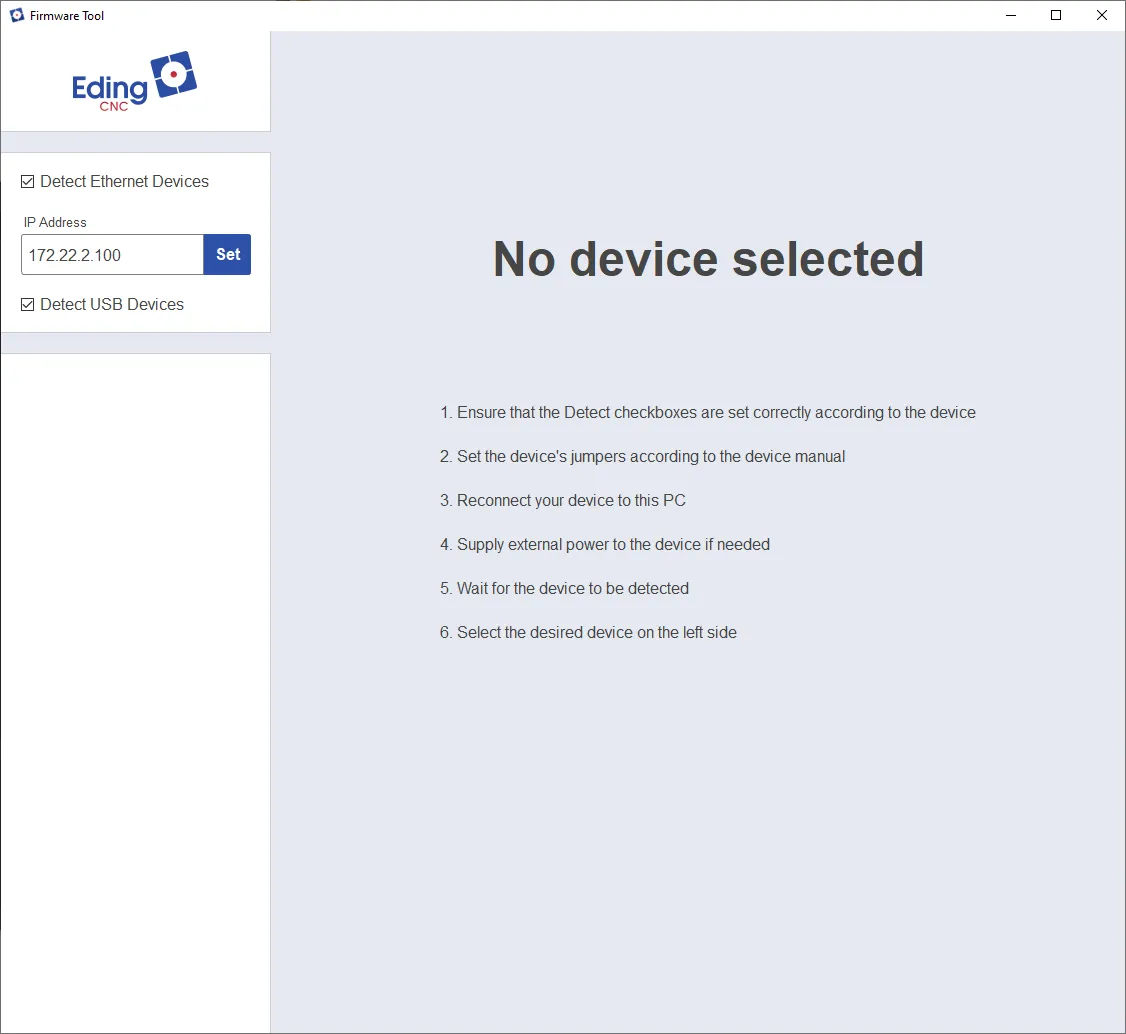
Connecting to a device
Ensure the settings on the top left side of the application are set correctly. For Ethernet devices, the default IP is 172.22.2.100 as filled in by default. Note that this is different from the IP set when setting up the network interface.
Ensure the device-specific steps have been followed before progressing to the next step.
Connect the device to the PC using the connection method specified in the device-specific steps.
Supply external power if the device is not connected using USB or not powered by the USB port.
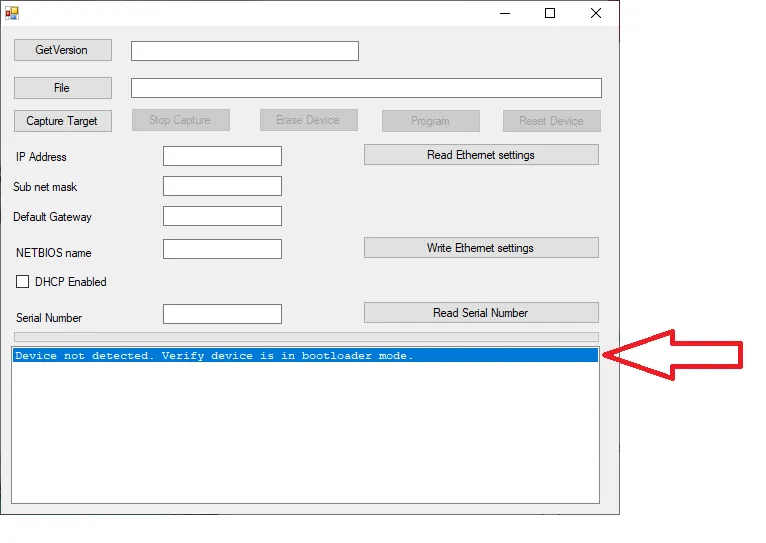
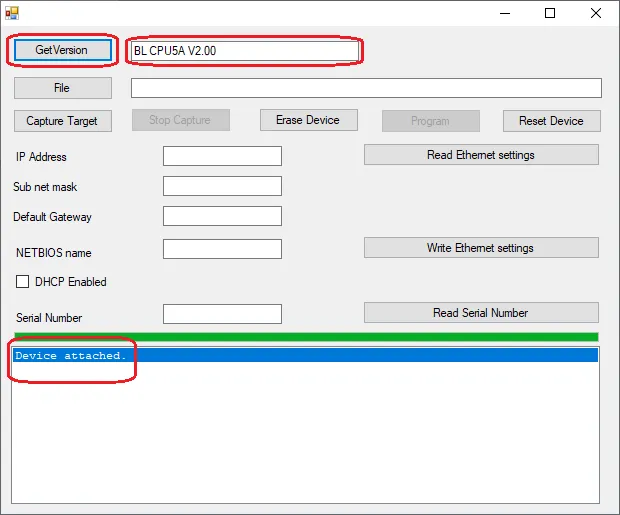
Wait for the device to be detected by the application. The device has a short time window in which it can be connected to the application, when this window has passed (typically 5 seconds) the device will boot as normal and can not connect to the application. In that case, disconnect and reconnect the power from the device to try again.
The new device will be listed in the white panel on the left side of the application.
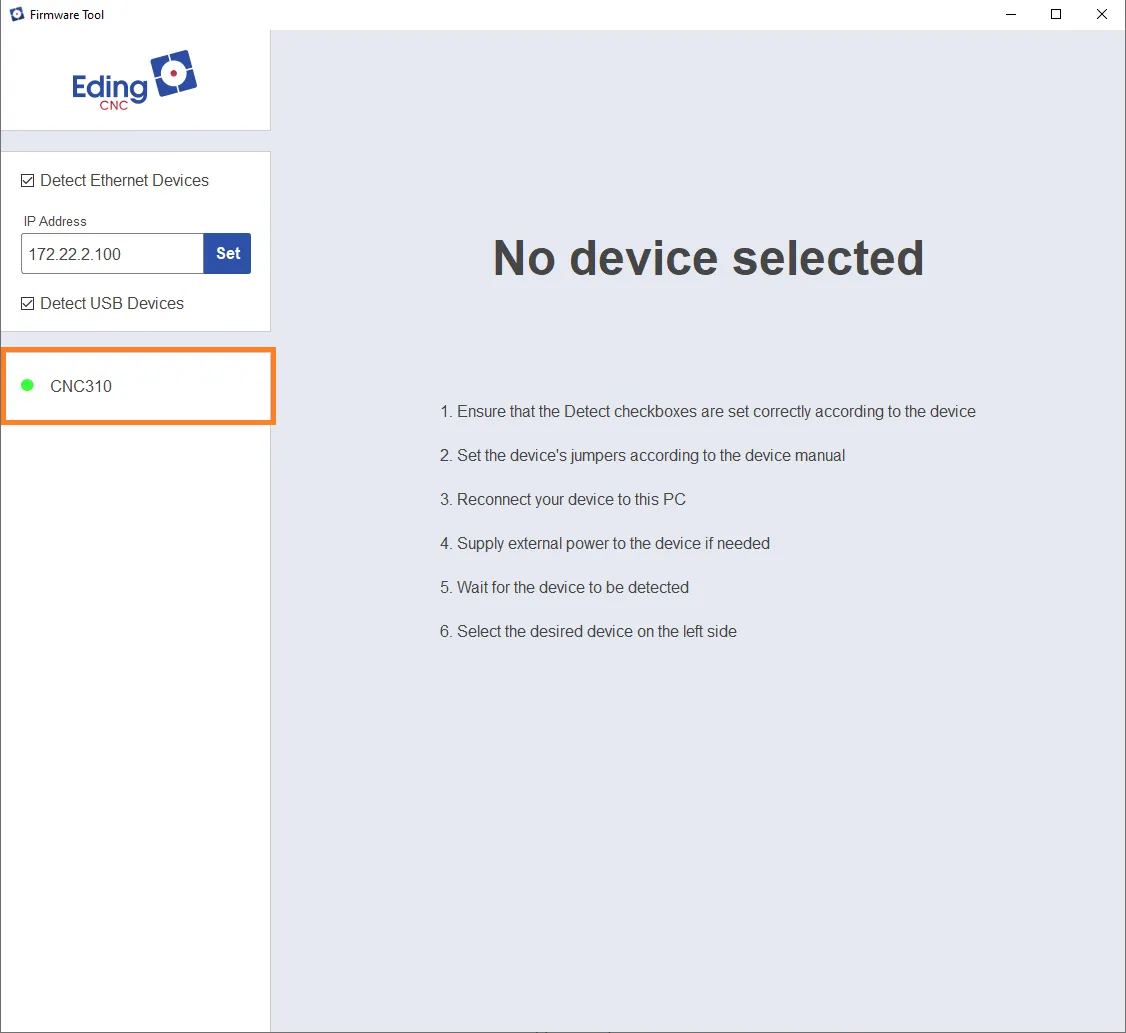
Click the device that needs to be upgraded, this will open the device settings.
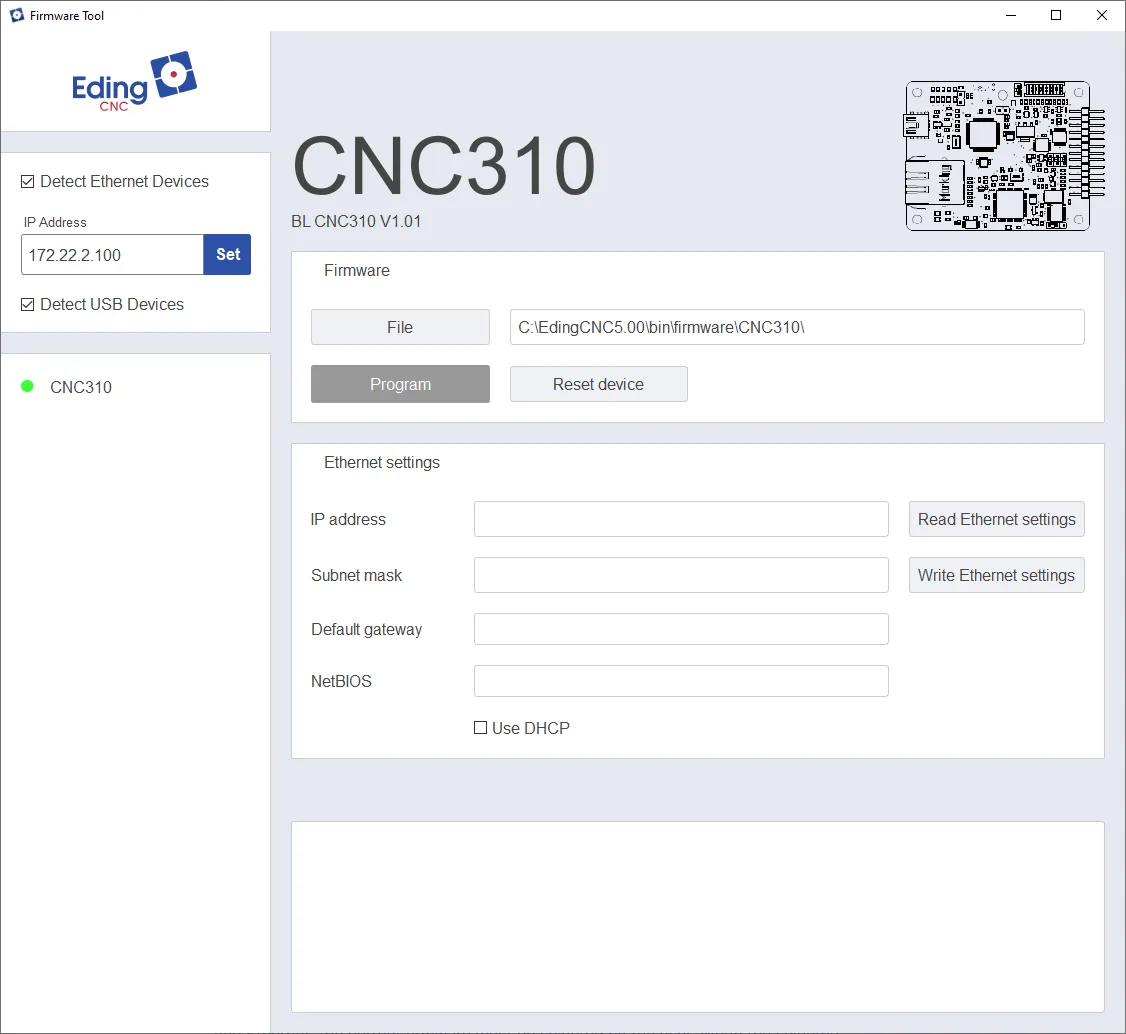
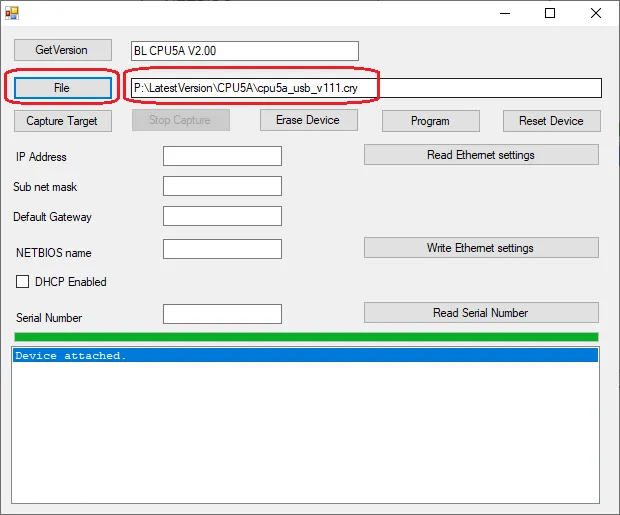
By default, the newest firmware file is pre-filled in. When a device is available in both USB and Ethernet, the correct firmware must be selected by the user. When the selected firmware file does not exist, the program button will be disabled (as shown by the grey background color). Ensure that the correct file is selected.

Programming the device with a firmware file that is not designed for it can cause damage to the device. Ensure the (pre-)selected firmware file is correct.
Press the program button to flash the selected firmware to the device. This operation takes roughly three seconds and the result is shown at the bottom of the screen.
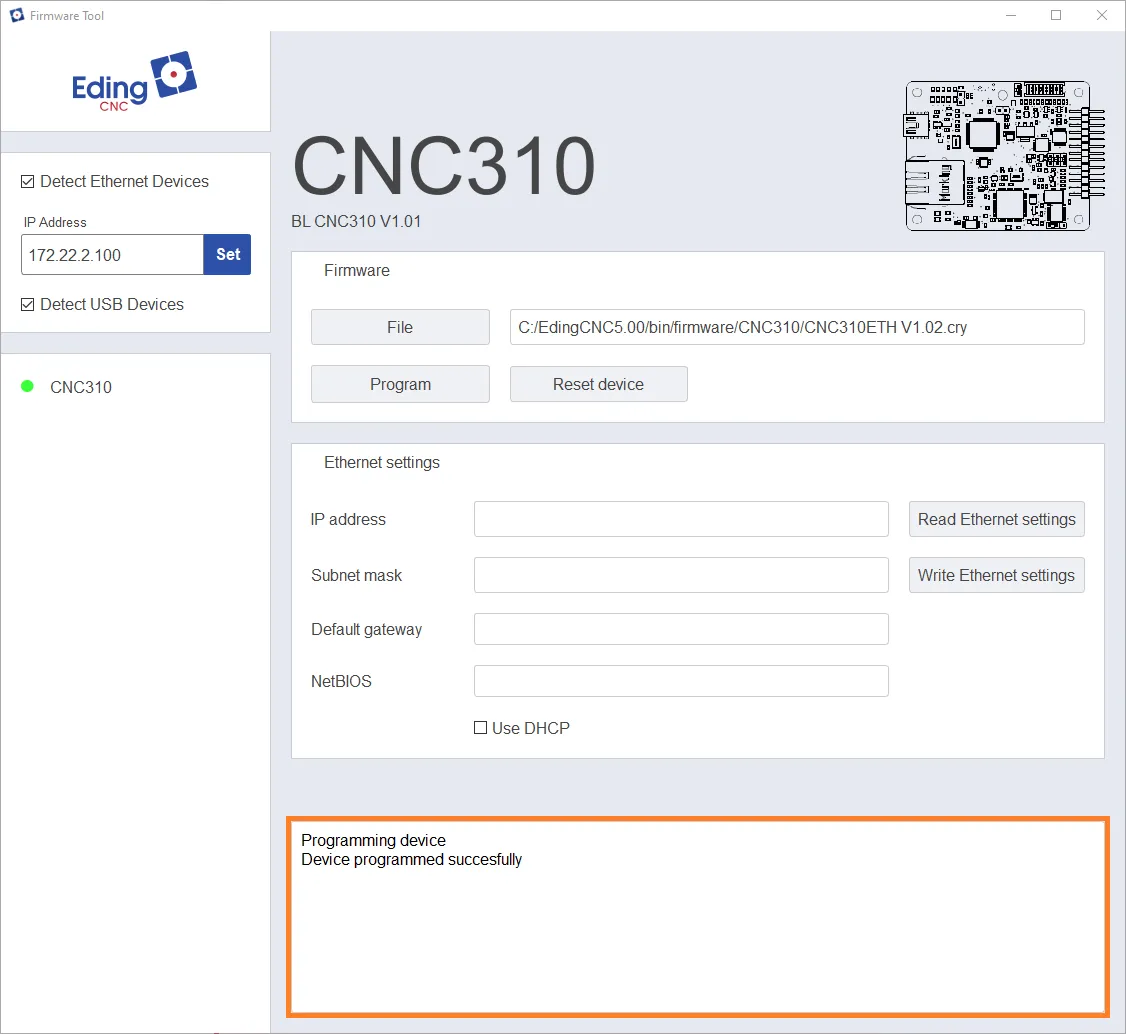
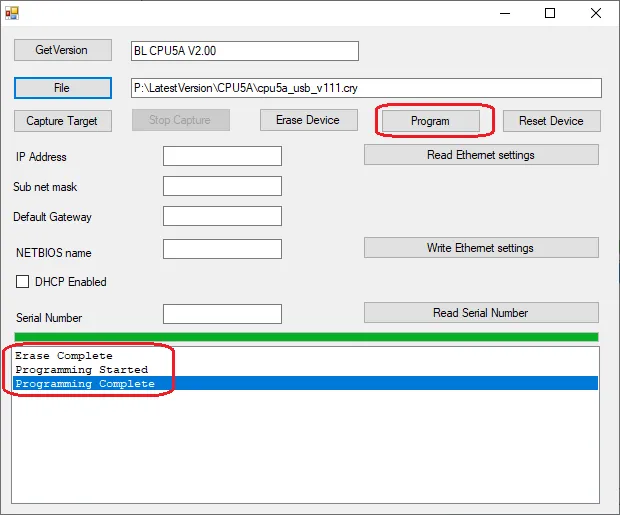
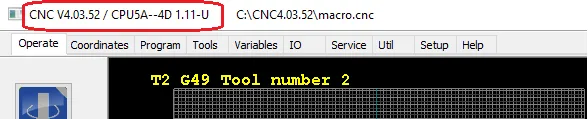
If a jumper was placed or removed, restore this to its original state at this point. After this is done, press the Reset device button and close the firmware tool. The device should start normally and be updated to the new version.